


The Mi TV Stick, developed by Xiaomi, has gained immense popularity for its compact design and the ability to turn any ordinary TV into a smart entertainment hub. It runs on the Android TV platform, which means you have access to a plethora of apps via the Google Play Store.
However, some apps might not be available through the official store, and that’s where sideloading comes into play.
In this article, we will explore the process of sideloading apps on Mi TV Stick, allowing you to unlock a world of possibilities beyond the standard app selection.
Table of Contents
What Is Sideloading?

Before we delve into the process, let’s understand what sideloading means. Sideloading refers to the installation of apps from sources other than the official app store. In the context of the Mi TV Stick, it involves installing Android apps manually using an APK file.
Process Of Sideloading Apps On Mi TV Stick
Enabling Unknown Sources
To begin sideloading apps on your Mi TV Stick, you need to enable the “Unknown Sources” option. By default, this option is disabled to protect users from installing potentially harmful apps. Here’s how you can do it:
- Navigate to “Settings” on your Mi TV Stick using the remote control.
- Select “Device Preferences” and then “Security & Restrictions.”
- Look for the “Unknown Sources” option and turn it on.
Finding Reliable APK Sources
Now that you’ve enabled Unknown Sources, the next step is to find reliable APK sources for the apps you want to sideload. Exercise caution when downloading APK files from the internet, as they might contain malware. Stick to well-known and trusted sources to ensure the safety of your device.
Sideloading Apps
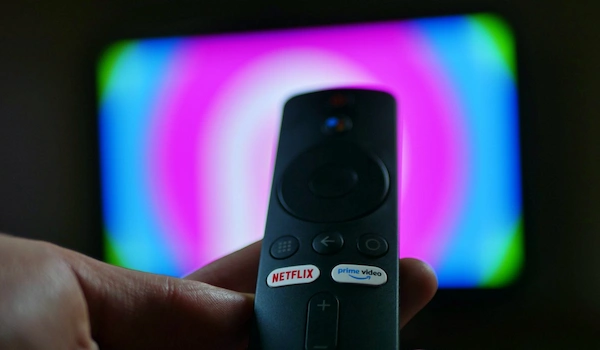
With Unknown Sources enabled and a trusted APK file at hand, you are ready to sideload the app onto your Mi TV Stick. Follow the steps given below:
- Download the APK file on your computer or directly onto a USB drive.
- If you downloaded the file on your computer, transfer it to the USB drive.
- Plug the USB drive into the Mi TV Stick using an OTG cable.
- Use a file manager app (if not pre-installed, download it from the Play Store) to navigate to the APK file on the USB drive.
- Select the APK file and click on “Install.”
Handling App Permissions
After successfully installing the app, you might encounter a screen asking for permissions. Unlike smartphones, the Mi TV Stick does not have a touch interface, so you will have to use the remote control to grant or deny permissions.
Pay close attention to the permissions requested, and if something seems fishy or unnecessary, it’s better to deny it.
Sideloading Apps from Web Browser
An alternative method for sideloading apps is directly from a web browser on the Mi TV Stick. Follow the steps given below:
- Open the web browser on your Mi TV Stick.
- Search for the APK file you want to download using a search engine.
- Once you find a reliable source, download the APK file.
- The web browser will notify you when the download is complete.
- Click on the downloaded file and select “Install.”
Managing Sideloading Risks

Sideloading apps can expose your Mi TV Stick to potential risks, such as malware and security vulnerabilities. To minimize these risks, follow these best practices:
- Only download APK files from trusted sources.
- Keep your Mi TV Stick’s operating system and apps up to date.
- Consider using a reliable antivirus app to scan sideloaded apps for malware.
- Regularly review and uninstall apps that you no longer use or find suspicious.
Conclusion
Sideloading apps on your Mi TV Stick can open up a world of entertainment possibilities beyond the confines of the official app store. However, it’s essential to proceed with caution and use trusted sources to avoid any security risks.
By enabling Unknown Sources and following the steps outlined in this guide, you can safely explore a wide range of apps and customize your Mi TV Stick according to your preferences. Enjoy discovering new content and features with sideloading while keeping your device secure.
