


As technology propels forward, home entertainment systems become ever more sophisticated, offering immersive experiences like never before. Among these devices, the Roku Streambar has risen in popularity due to its seamless integration of advanced audio with streaming services.
However, like any tech gadget, it can run into occasional hiccups. Therefore, understanding Roku Streambar troubleshooting is crucial to keep enjoying your favorite content without interruption.
Table of Contents
Common Roku Streambar Issues

The Roku Streambar is generally reliable, but users have reported some common issues. These include sound problems, connectivity troubles, and setup issues, among others. Addressing these problems starts with familiarizing yourself with Roku Streambar troubleshooting steps.
Roku Streambar Troubleshooting: Sound Issues
One frequently encountered issue with the sound of the Roku Streambar which is the lack of sound or audio glitches. If this happens, the first step is to check your connections. Ensure that the HDMI or optical cable is firmly plugged into both the Roku Streambar and the TV.
Next, check the audio settings on both your Roku Streambar and TV. Make sure they are compatible and configured correctly. If the audio issue persists, try restarting the device. In most cases, a reboot fixes the problem.
Connectivity Troubles and Roku Streambar Troubleshooting
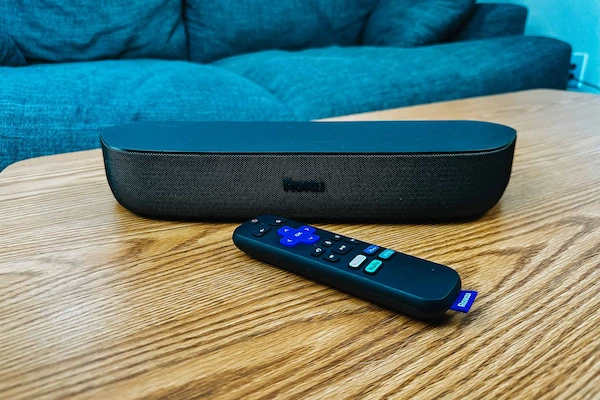
The Roku Streambar relies heavily on an active internet connection to deliver content. If you’re facing connectivity issues, the first step is to check your Wi-Fi connection. If other devices are working well on the same network, the problem might lie with the Roku device.
Try restarting both the Roku Streambar and your router to see if this solves the problem. If not, you might need to reset the Roku Streambar’s network settings. Navigate through the Roku’s settings menu to the “System,” “Advanced system settings,” and then “Network connection reset.” Follow the on-screen instructions to complete the process.
Troubleshooting Setup Issues

When it comes to setup issues, Roku Streambar troubleshooting mainly involves ensuring your device is correctly installed. Verify that the device is connected to a power source and that the HDMI cable is properly attached to your TV. Also, confirm the HDMI input source selected on your TV matches the one to which the Streambar is connected.
If the setup issue persists, a factory reset might be necessary. Keep in mind, however, that this will delete all personal preferences and settings on your Roku Streambar. To perform a factory reset, navigate to the settings menu and select “System,” followed by “Advanced system settings,” and then “Factory reset.”
A Deeper Dive into Roku Streambar Troubleshooting
Roku offers a host of solutions for its users, making Roku Streambar troubleshooting a manageable task. The majority of issues can be resolved with simple steps, such as checking your connections, adjusting your settings, or restarting your device.
However, if you’ve tried all the recommended steps and are still facing problems, it may be time to reach out to Roku’s customer support. They can provide further guidance and possible solutions that are specific to your issue.
Remember, while technical difficulties can be frustrating, effective troubleshooting often resolves these issues quickly. Familiarizing yourself with the basic Roku Streambar troubleshooting steps can ensure you get back to enjoying your favorite shows and movies in no time. And after all, that’s what the Roku Streambar is all about – transforming your entertainment experience.
